Structural Molecular Biology
Illuminating Biological Structures at the Atomic and Molecular Levels



Biological Small Angle X-ray Scattering/Diffraction
Beamline Hardware
Beamline Software
BL4-2 Blu-Ice: Getting Started
The Linux machine at the beamline bl42cpu is used to control the beamline and collect data through Blu-Ice. Log in using your Linux user name and password you obtained from the beamline staff. Remember that Linux is case sensitive.
Starting Software
To start Blu-Ice, open a Linux shell by right click on the screen and choose "Open Terminal" on the bl42cpu and type go on the command line prompt. A GUI similar to the following will appear. You will need to type in your Linux login password to continue.
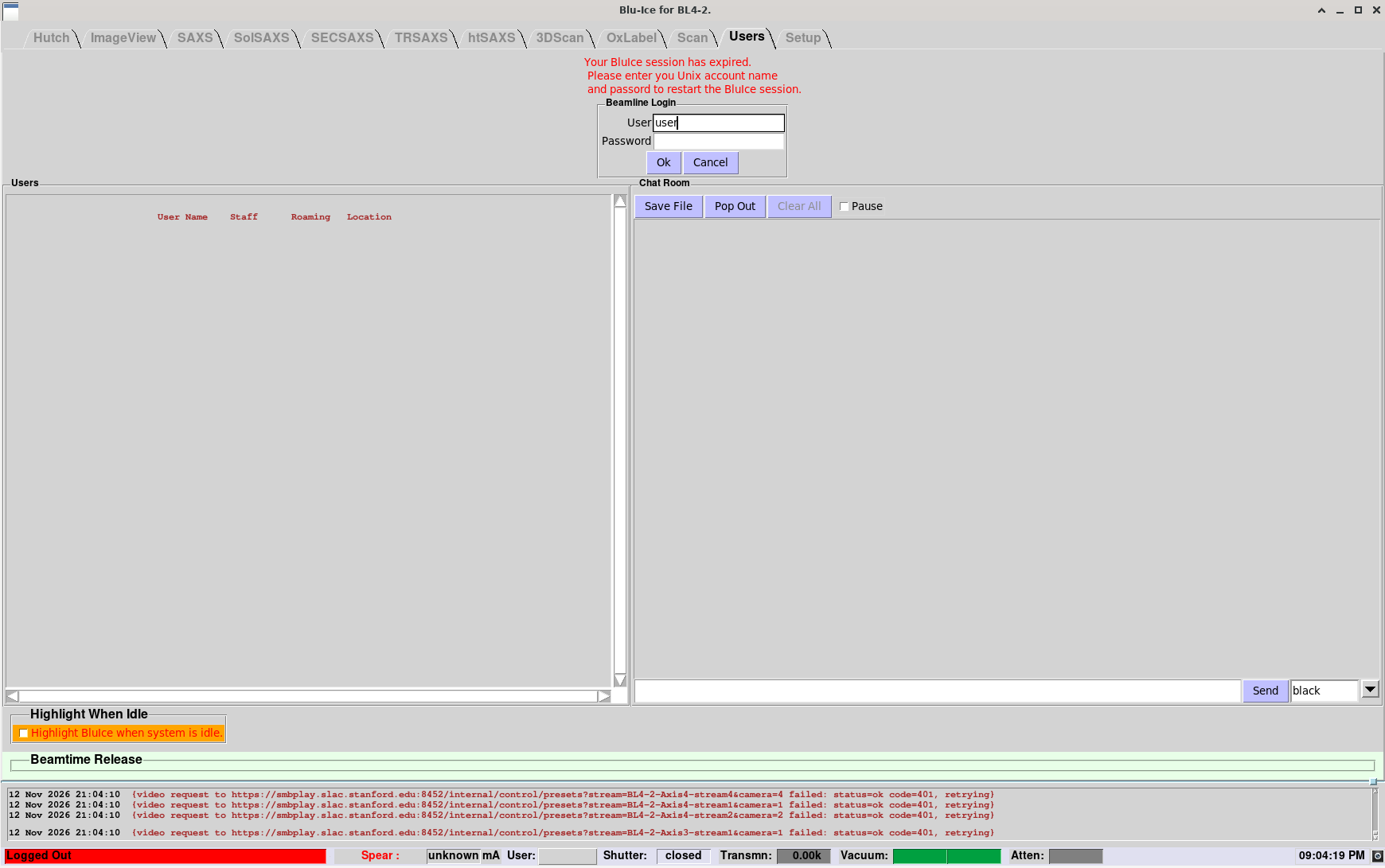
Once you are logged in, you will be taken to the Hutch tab.
The user does not need to log in if the Blu-Ice program on this account has been used in the last two weeks. In that case, after the user issues the go command, Blu-Ice will take the user directly to the Hutch tab.
There are 12 tabs at the top of the BluIce User Interface. To switch to a different tab, simply click on it. Not all tabs are accessible to general users.

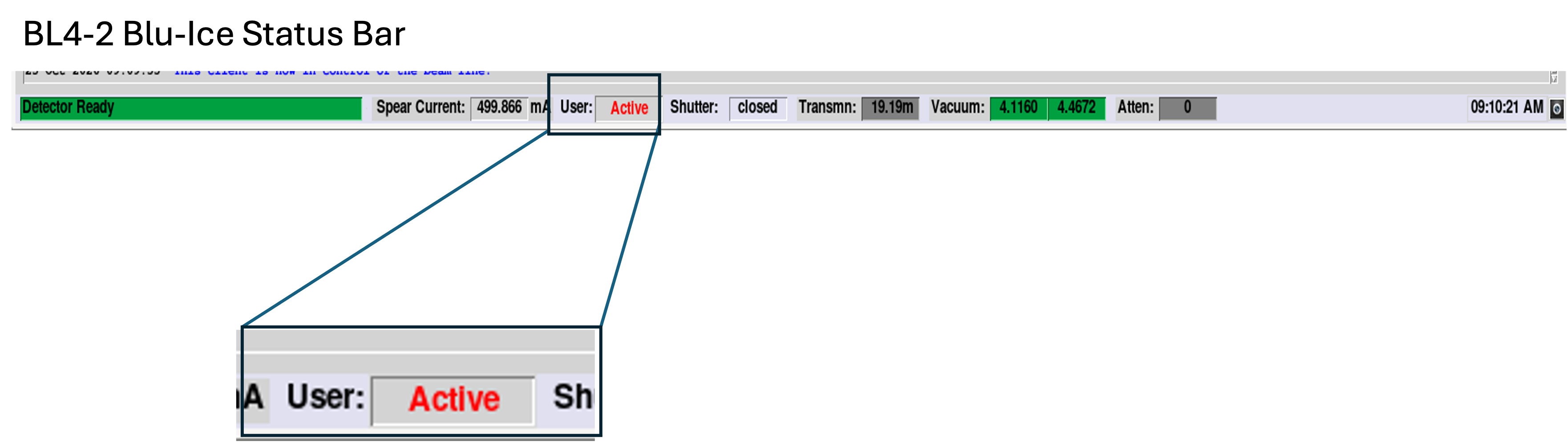
At the bottom of the interface is the Blu-Ice status bar. It shows the general status of the software and beamline hardware, including the detector, SPEAR status, user (active/passive), shutter and vacuum status. On the right corner it also displays the current time.
To take control of the beamline (or to go "active") the user needs to click on the field right of the "User" label. This will change the status of the user interface to be active. All other open Blu-Ice interfaces for the beamline will go into the inactive state (i.e. only one interface can be "active" at a time).