 EXAFSPAK for
Windows
EXAFSPAK for
Windows 
EXAFSPAK for
Windows
Please note -This release of PC-EXAFSPAK uses the Hummingbird Exceed X-server, and this must be installed before EXAFSPAK can be used.
Windows 2000 -specific EXAFSPAK installation procedure:
Please note - in the following example EXAFSPAK is to be installed in d:\exafspak with the home directory d:\exafshome. This is merely an example - EXAFSPAK does not have to be installed in any specific disk or folder.
4 and 5. Set the system environment variables exafs to indicate the folder in which the EXAFSPAK files are located. Set the system environment variable home to indicate the folder for your settings.
Please note - set system environment variables not user environment variables.
Use the System tool in the Control Panel and select the Advanced tab:
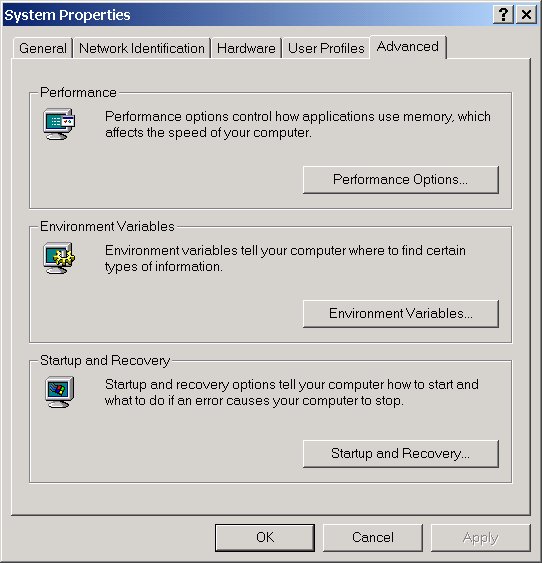
Select "Environment Variables..." in the middle pannel and the Environment Variables dialog box will appear:
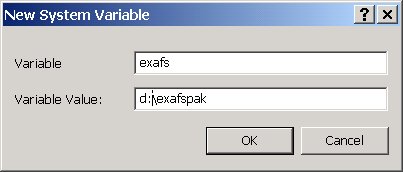
6. Modify (set) the path system environment variable to include both exafs and the location of the Exceed installation. To do this proceed as above, except select "Edit..." in the Environment Variables dialog box.
Please note - in our example Exceed was installed in c:\Program Files\Exceed.nt you must enter the location of the exceed installation on your PC.
|
|
 |
 |
 |
