SSRL Beamline Backup
Backup on PC
The available media on PC are:
- CD ROM-CD Writer
- 250 Mbyte Zip drive
Instruction on how to backup users data onto a
CD:
Log on to one of the PCs on the beamline floor using your SSRL domain
Windows account.
- Accessing data files on the beamlines
- Click on Start button
- Click on Programs
- Click on WRQ Reflection
- Click on Host Unix and Digital
- Click on connect and choose connection setup using Best Network
- Type the beamline nodename for the host(ex: S072), it is s zero 7 2
- Log on with your username & password on that node
- At the prompt change the default directory to the one which has your
data, in other words: set def $data: or $data:[username.whateversubdir]
To get more info on zip command, at the prompt type
zip-?
To zip all the files that starts with fe to a zip file (ex: june.zip) type
zip june.zip fe*.*
To convert binary XAS data files to ascii, at the prompt type
xas_ascii fe*.*
- FTPing files from beamline system to PCs
- Click on Start button
- Click on Programs
- Click on WRQ Reflection
- Click on FTP client
- Click on New
- Type in the node name (ex:s073), it is s zero 7 3
- Type username and then password on that node
When your're connected, the nodename and directory is highlighted.
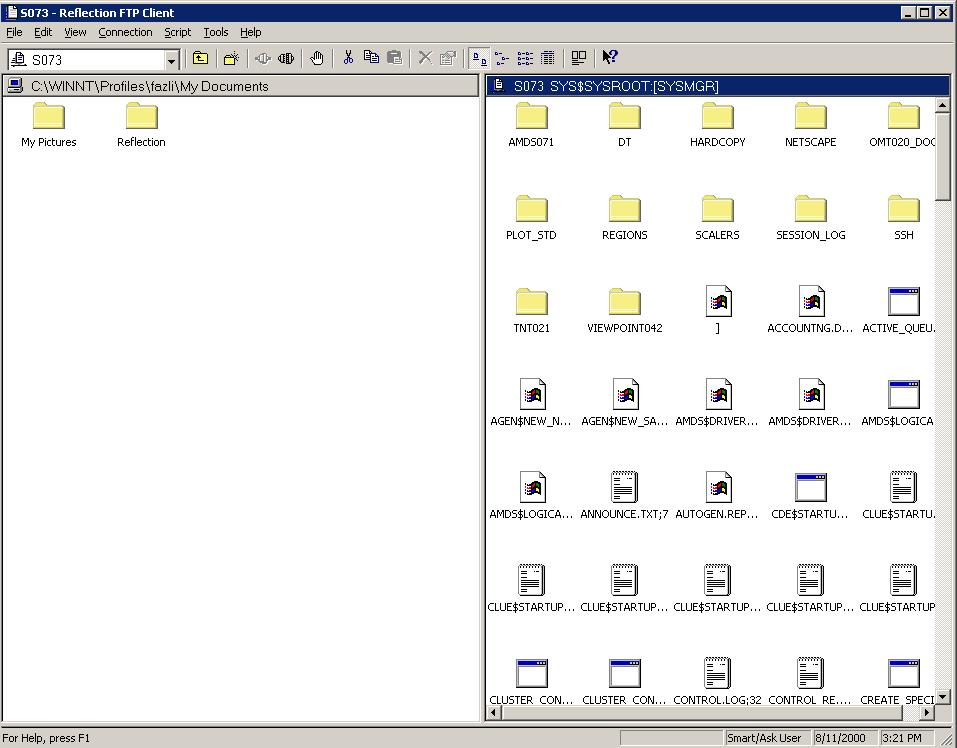
- Click on tools
- choose goto
- type the directory which has your data(ex: $data:[b_username.mar]
- highlight PC side and click on D drive, where all users have their
default directory
- If the data files are in binary:
- Drag and drop all the Zip files from beamline system (ex: s073) to your
directory on the PC
- If the data files are in ASCII:
- Select all the ASCII files. Under Tools, click on
Tools-Transfer-Method, choose ASCII. Drag and drop all ASCII files to your
home directory under D drive.
- Zipping files on PCs
- Click on Start button
- Click on Programs
- Click on Winzip
- Click on New-type the name of the zip file interested to create
- Select all files, by clicking on one file and then (hold down Shift and
one of the arrow keys)
- click on add
- Writing files from PC to CD
- Click on Start button
- Click on Programs
- Click on Burn CD & DVDs with Roxio
- Click on make a DATA CD
- Click on DATA CD project
- Right click on volume, it is usually today's date and choose Property
(We recommend to choose volume label)
- Choose ISO9660 as the file system, because it is the universal format
- Click OK
- Under Source file, Click on Data drive
- Click on your directory
- Highlight all the zip files
- In the middle, click on ADD (Make sure you have blank CD in you CD-writer)
- Click on Red Record button that appears after you click ADD.
It takes few minutes depending on how many zip files you have to write to CD.
To test the CD which was just created, one can read it on CD-ROM or load it
on a VMS system.
If you have question regarding backing up your data files, contact
Ellie Fazli at extention 3038
or Samuil Belopolskiy at
extention 3003.
Updated by:
Ellie Fazli

